Permissions
On the user page you can create users accounts and assign the appropriate rights to your staff members.
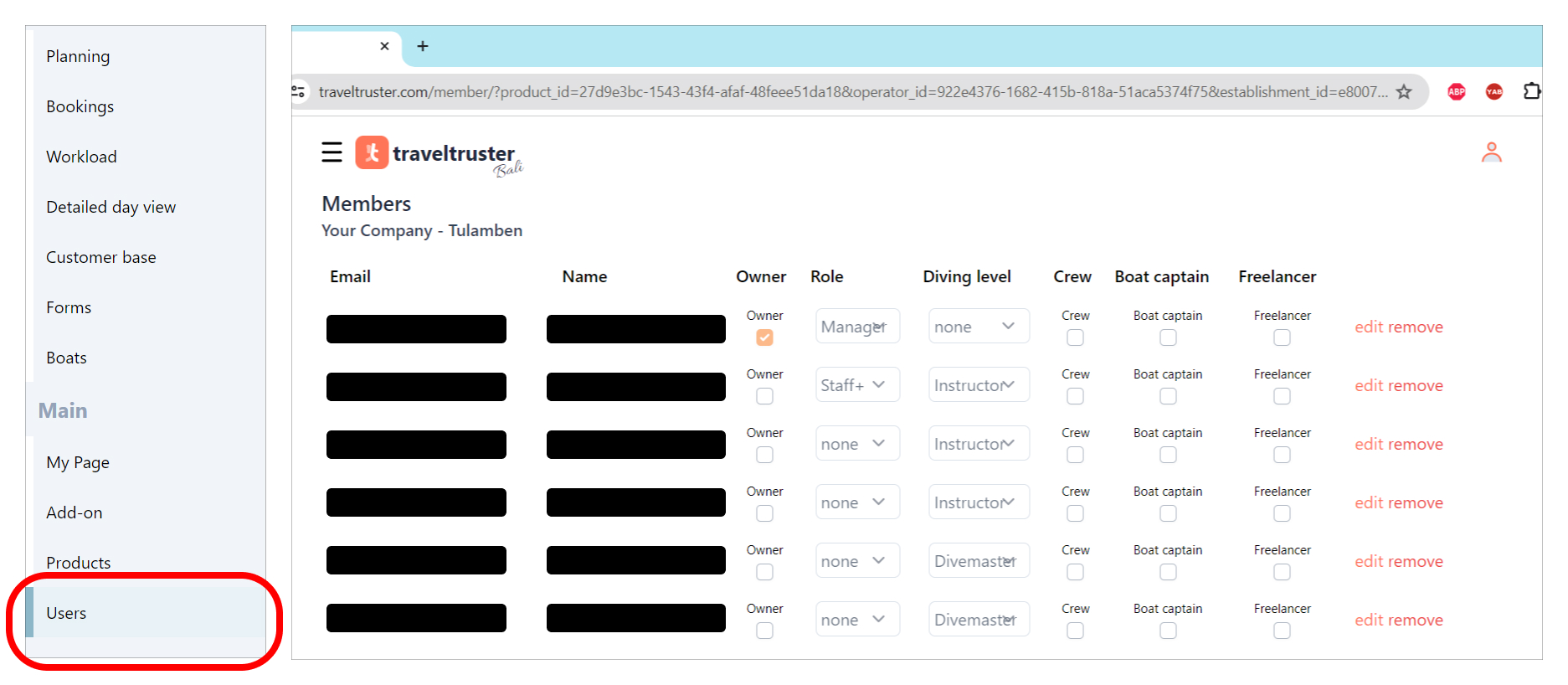
Giving a user the appropriate Role determines one’s editing and viewing rights. There are currently 3 categories:
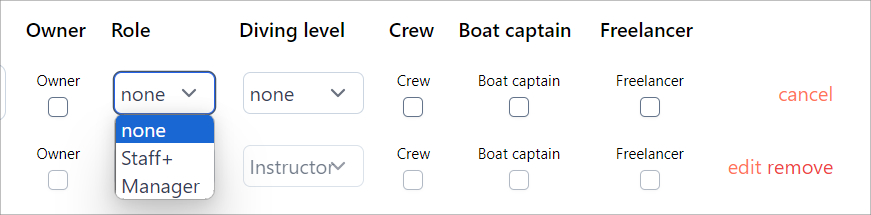
1. none
This means no additional rights next to the default rights of the staff member in qustion.
E.g. An instructor without an allocated role can solely view his or her schedule and has no rights to see the general planning or other members their schedule.
2. Staf+ rights
A user with staf+ rights can view planning-related pages and day operations, but is mostly read-only.
The exceptions are operational actions on Day Manifest where Staff+ can:
- add/edit comments
- change pickup/meeting time and address
All other editing actions remain restricted.
3. Manager rights
When given manager rights, a user can view and edit all existing content.
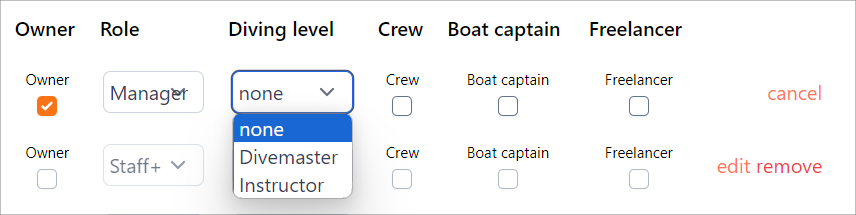
The appropriate diving level can be given here. A staff member given Divemaster or Instructor rights has access to a personal page named ‘My Page’. Read more in the custom registration form guide.