Discount Calculator
With the Discount Calculator you can build reusable discount rules and apply them to a booking or specific guests in a controlled way.
Create a Discount Rule
Section titled “Create a Discount Rule”The Discount Calculator can be found inside the bill section of a booking. Clicking on the newly added ellipsis opens the bill quick-actions menu. From there, clicking Add discount opens the Discount Calculator side panel, where you can:
- Apply discounts to an entire booking or specific guests.
- Save rules for team-wide reuse.
- Preview calculations in real time before applying them.
- Update or remove discounts without manually editing individual bill lines.
1. Define Rule Basics
Section titled “1. Define Rule Basics”- Rule Name: Use clear, recognizable names for your team (e.g., Early Bird 10%, Staff Discount, Professional Discount).
- Type: Choose Percentage to subtract a percentage from the selected discount scope, or Fixed amount to subtract an exact monetary value. Use the input field next to the selected type to set the exact discount value.
- Application Mode: Choose whether the discount applies to the selected bill lines for the booking total or to one or more specific participants in the booking.
- Default applied to: For percentage rules, choose which default bill line groups the rule targets. You can still adjust these selections on the fly before applying the discount:
- Activities
- Add-ons
- Accommodation
- Retail
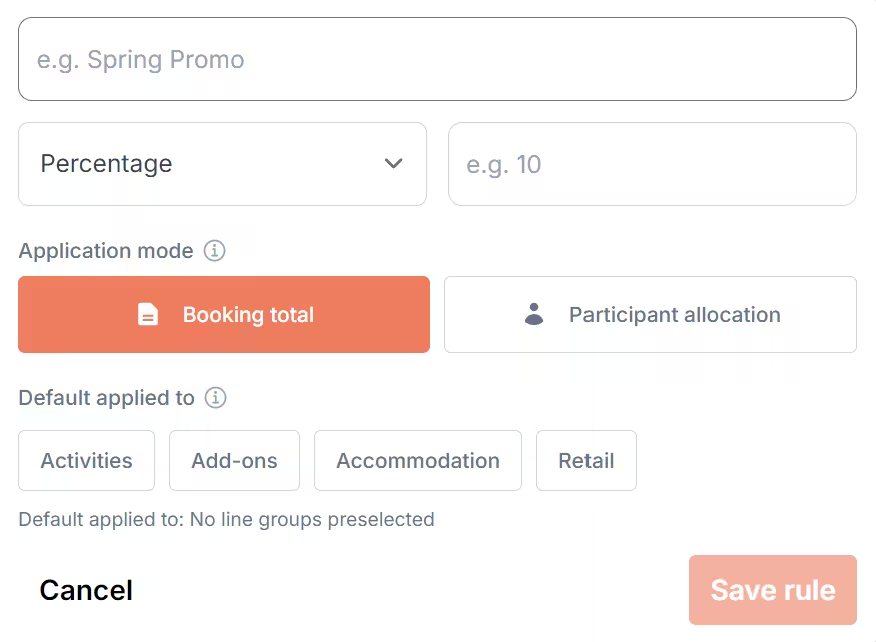
Click Save rule to add it to your permanent library.
Apply a Discount to the Booking Total
Section titled “Apply a Discount to the Booking Total”Choose Booking total for booking-wide promotions, package deals, or general goodwill discounts.
- Line Selection: You control exactly which bill lines are included.
- Percentage Rules: Only affect the specific line groups selected.
- Fixed Rules: The total deduction matches your exact fixed amount and is distributed proportionally across the selected bill lines.
When a discount is applied to a specific scope, Diversdesk keeps that scope attached to the discount. For example, if the discount is scoped to activities, adding another activity later will include that new activity in the same discount scope when the discount is recalculated or updated.
Tip: The calculator displays a live summary so you can verify the math before saving.
Apply a Discount to Specific Participants
Section titled “Apply a Discount to Specific Participants”Choose Participant allocation when a discount belongs to individual participants/guests (e.g., Professional Discount, Family Discount, or any other targeted participant compensation). Each selected person receives an individual discount calculation based on their eligible bill lines.
Percentage Discounts
Section titled “Percentage Discounts”Calculated strictly against the eligible bill lines linked to that specific guest. If the booking includes shared or unassigned costs, the calculator shows how those are distributed so the base amount remains completely transparent.
Fixed Discounts
Section titled “Fixed Discounts”When applying a fixed amount to guests, select one of two behaviors:
- Shared amount: The total amount is split evenly among the selected guests.
- Amount per participant: The full amount is applied individually to each selected guest.
Important Safeguards:
- A guest’s discount cannot exceed their remaining billable balance.
- If a guest has no eligible balance left, their discount caps at zero.
- Diversdesk will flag a warning if a selected guest has no remaining balance.
How Discount Stacking Works
Section titled “How Discount Stacking Works”When your setup uses parallel stacking, each discount is calculated from the original selected discount scope, not from a total that has already been reduced by a previous discount.
In practice, this means stacked discounts are calculated alongside each other on the same base amount, and the combined discount result is then deducted from the booking total.
This makes the outcome easier to review and helps keep discount calculations more predictable when more than one discount applies.
Review & Manage Applied Discounts
Section titled “Review & Manage Applied Discounts”Live Previews
Section titled “Live Previews”Before confirming, review the real-time breakdown to ensure the discount targets the correct lines or guests. The preview displays:
- Gross total & remaining balance.
- Discount scope / selection total.
- Any existing applied discounts & the new preview discount amount.
System Warnings
Section titled “System Warnings”The calculator actively prevents pricing errors by warning you if:
- The discount stacks with an existing rule.
- Combined discounts push the booking total below zero.
- The discount creates an overpayment (requiring a refund).
- A selected guest has no balance left to discount.
Updates and Removals
Section titled “Updates and Removals”Once applied, you can manage everything right from the calculator panel: update the rule version, view the customer preview, or completely remove the discount.
This is especially useful when the booking changes after the discount was first applied. If the discount is tied to a stored scope such as activities, add-ons, or other selected line groups, updating the discount keeps that scope logic in place and recalculates the result against the current matching lines in the booking.
Legacy Discounts
Section titled “Legacy Discounts”Older bookings may contain discounts applied via the legacy activity card system.
- Separation: The calculator marks these as Legacy. They are not automatically converted into new Discount Rules.
- Management: Legacy discounts must be edited directly on the original activity card where they were created. This prevents calculations on older bookings from breaking.
Quick Best Practices
Section titled “Quick Best Practices”- Be descriptive: Name rules clearly so staff instantly know when to use them.
- Trust the preview: Always double-check the live summary numbers before hitting apply.
- Watch out for stacking: Take extra care when compounding multiple discounts on a single bill.
- Target accurately: Only use guest allocation if the discount belongs strictly to specific individuals.