Webshop
Use the Activities Webshop page to review and manage how activities appear in the public booking flow.
This page is both:
- A customer-facing shop page for browsing and booking activities
- A manager-facing control surface for category presentation and webshop structure
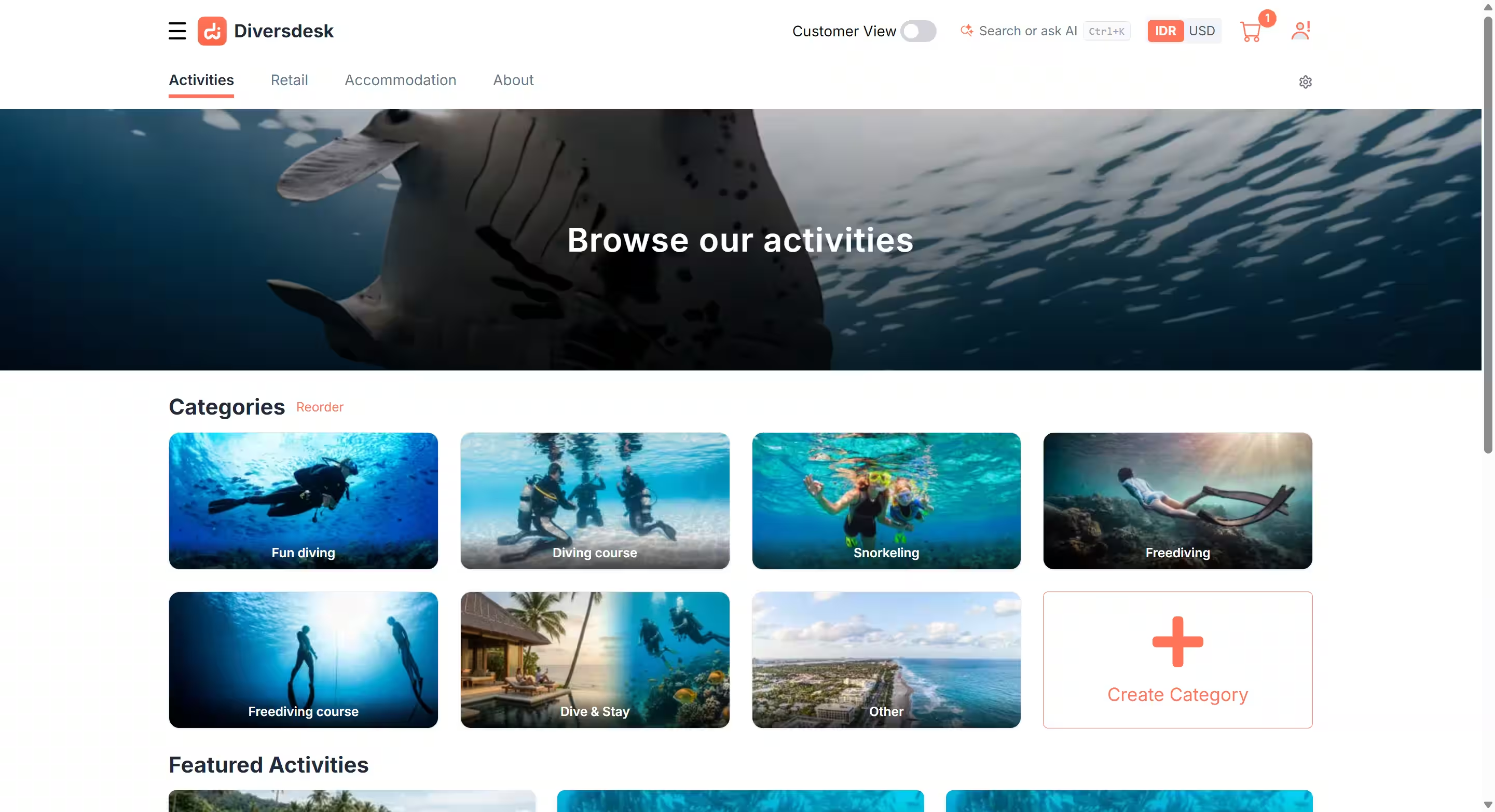
What Customers See
Section titled “What Customers See”The Activities tab shows:
- A hero banner at the top of the page
- Activity categories
- Featured activities
- Activity cards that open full activity detail pages
Only published activities appear in the public customer view.
If activities are marked as featured and published, they can also appear in the Featured Activities section.
How Activities Are Organized
Section titled “How Activities Are Organized”Customers normally browse activities through categories first, then open a specific activity page.
Your category setup influences:
- How the shop home page is structured
- Which category pages customers can open
- The order in which categories appear
Manager Tools on This Page
Section titled “Manager Tools on This Page”When a manager opens the Activities Webshop outside customer view, the page also exposes webshop-management controls.
Managers can:
- Reorder activity categories
- Create new categories
- Open category edit flows
- Review category-specific activity listings
- Feature and unfeature activities
This is useful when you want to shape the browsing experience without leaving the webshop context.
Featured activities are shown directly below the category cards on the webshop landing page.
Because featured items can come from different categories, you can use this area for cross-category highlights such as:
- Best sellers
- Limited-time promos
- Seasonal recommendations
Activity Visibility Notes
Section titled “Activity Visibility Notes”Public customers only see activities that are published.
Managers can still review webshop structure internally, including editing flows, without relying on the public customer view.
Unpublished activities remain visible to managers in manager view and are shown in a more faded style, making them easy to recognize.
This is useful when you need to temporarily unpublish seasonal activities or products without losing their setup.
Category Setup Basics
Section titled “Category Setup Basics”Use categories to define how customers browse activities before opening an activity detail page.
Recommended setup workflow:
- Create your main categories based on customer intent (for example beginner Fun Dives, Courses, Dive & Stay, private options).
- Order categories in the sequence you want customers to scan on the webshop landing page.
- Review each category listing and make sure the activities inside match the category purpose.
- Use featured activities for cross-category promotions instead of overloading one category.
Category Deletion Rule
Section titled “Category Deletion Rule”A category can only be deleted when it has no underlying activities.
If the category still contains activities, first:
- Delete those activities, or
- Move them to another category
Only after the category is empty can it be deleted.
Activity Setup Basics
Section titled “Activity Setup Basics”Before an activity appears correctly in the webshop, verify:
- Activity content and operational settings are complete
- Pricing is configured
- Publication state is set correctly
- Featured flag is enabled when you want landing-page promotion
For a full step-by-step workflow on creating and configuring an activity, see Create and Configure Activities.
Blocked Dates (Per Activity)
Section titled “Blocked Dates (Per Activity)”You can block specific dates so customers cannot book a given activity on those dates.
This is configured from the activity view side panel, in the Blocked Dates section.
This is useful for temporary closures, maintenance days, instructor unavailability, or special operation windows.
Booking Lifecycle and Approval Rules
Section titled “Booking Lifecycle and Approval Rules”You can control how webshop/direct bookings are handled after a customer submits them.
From Settings > General, you can configure lifecycle behavior such as:
- Manual approval workflow, or
- Time-bounded auto handling where bookings auto-approve or auto-decline after a configured time window (for example after X minutes or hours)
From the same settings area, you can also define how far in advance customers are allowed to book.
This helps align online booking behavior with your operational capacity and response policy.
Webshop Payments
Section titled “Webshop Payments”Integrated payment gateways support payment requirements at category level.
Depending on your setup, you can require:
- Mandatory partial payment, or
- Mandatory full payment
This lets you control commitment level per category, for example stricter prepayment for high-demand activities.
Hero Banner Images
Section titled “Hero Banner Images”The rotating hero banner on the Activities Webshop page is managed from Shop Settings, not from the activity cards themselves.
If multiple hero images are uploaded, they fade automatically from one image to the next.
What This Page Depends On
Section titled “What This Page Depends On”The Activities Webshop page reflects setup done elsewhere in Diversdesk, especially:
- Activity setup and pricing
- Category structure
- Publication state
- Featured flags
Use this page to verify that the public activity shop matches the activity setup you intended.