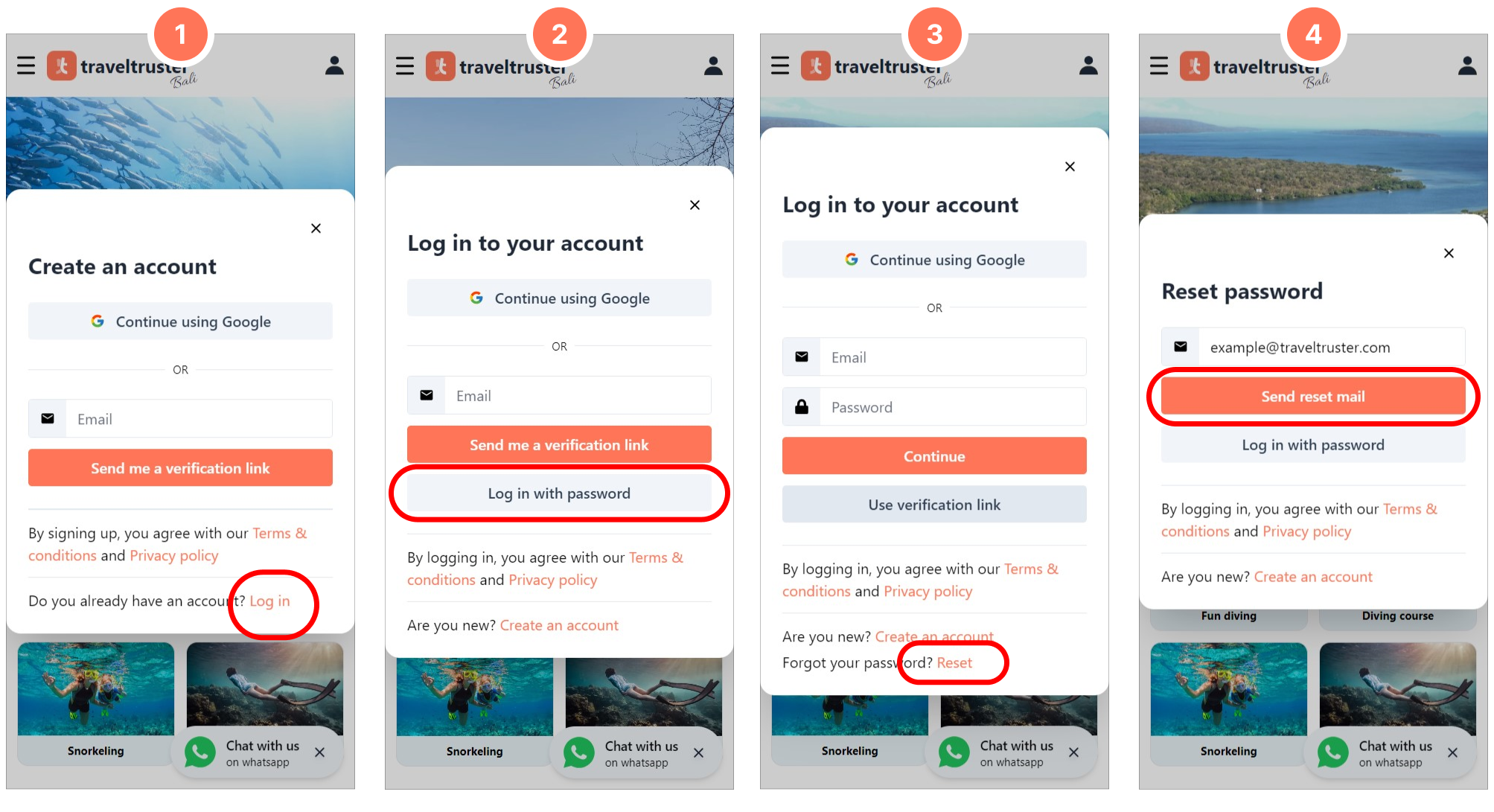
Sign Up or Log In
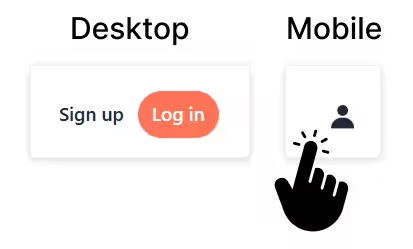
Use the Sign up or Login buttons in the top-right corner of the screen to create or access your account. This guide covers both account creation and login.
Create an Account
Section titled “Create an Account”You can create an account through a secure email verification flow or through an existing Google account.
Already have an account? Continue reading at Login to your account.
1. One Time Password (OTP)
Section titled “1. One Time Password (OTP)”Signing up can be done through the sign-up button on app.diversdesk.com or, for Diversdesk white-label users, via the personal URL we provided to you.
The Send a One Time Password button sends a time-limited 6-digit password to the email address you entered.
- Fill your email and press ‘send the the OTP password’.
- Fill the OTP password that’s sent to your email.
- You are now logged in. The icon color indicates your logged in status.
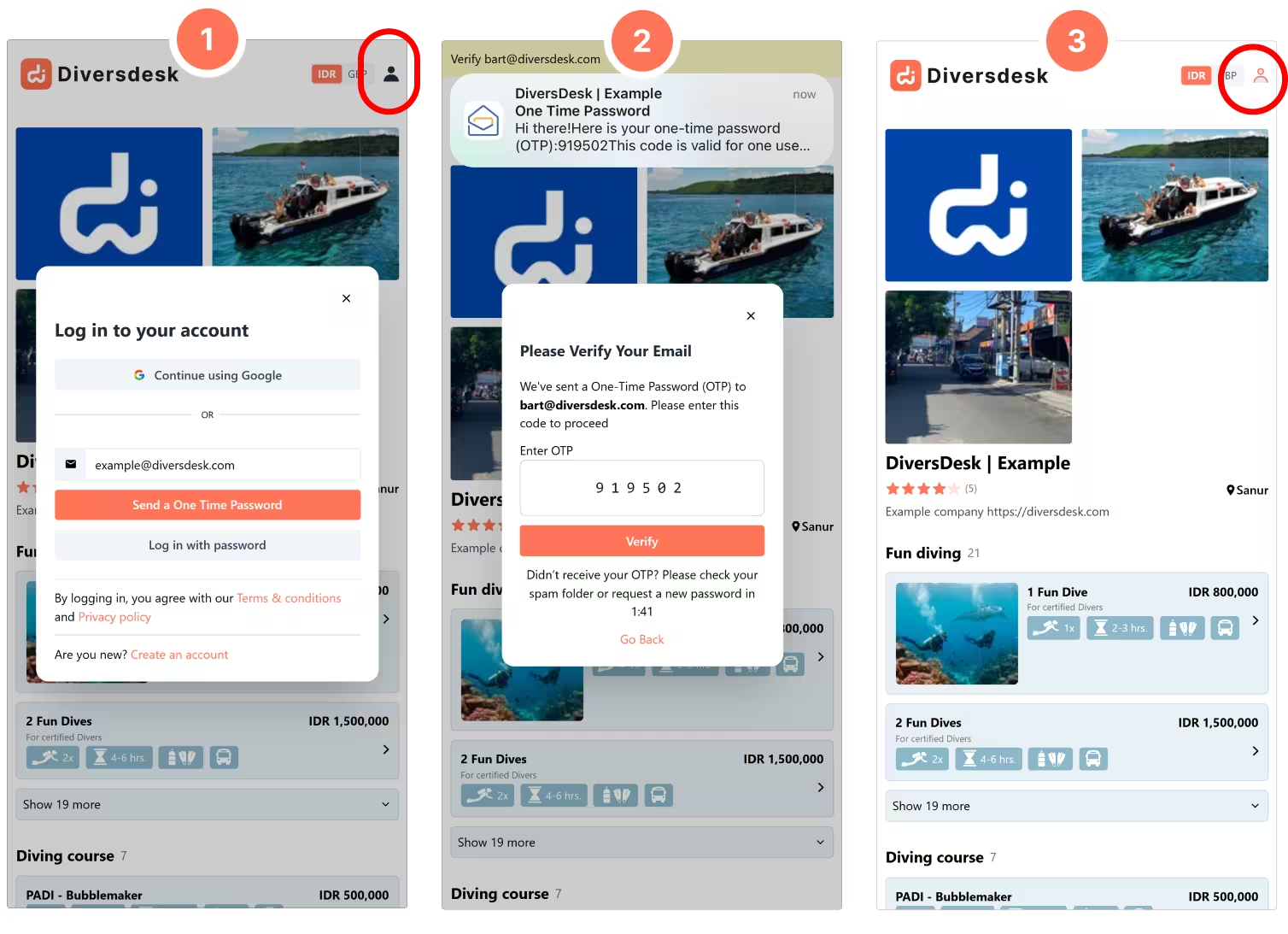
Verifying your email will automatically log you into your account. Once logged in, you can access your company page through the hamburger menu in the top-left corner.
2. Google Sign-Up
Section titled “2. Google Sign-Up”Alternatively, you can sign up using your Google account.
- Sign up through your google account.
- Select the desired Google account.
- You are now logged into your account.
- Pls press the ‘Continue Using Google’ button a 2nd time if your browser blocks pop-ups.

Login to Your Account
Section titled “Login to Your Account”To log in, visit app.diversdesk.com or, for Diversdesk white-label users, use your personal URL and select the login button on desktop or the profile icon on mobile.
From there, follow the prompt to access your account.
- Login through the profile icon
- After a successful login, you will find all menu items under the hamburger menu in the left top of your screen.
- Expand to see all the menu items.
- The profile icon on the right top is a good indication you are logged in.
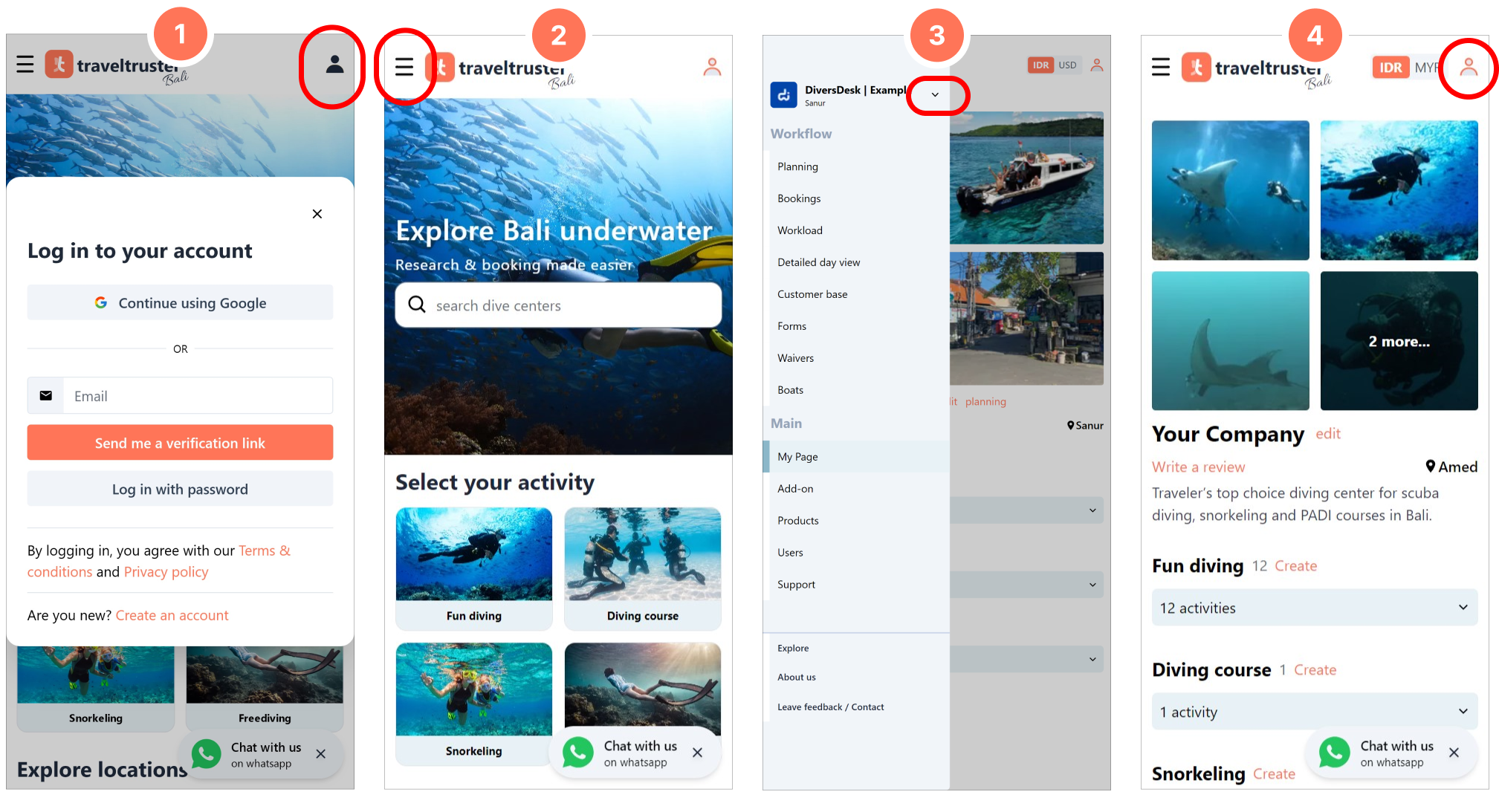
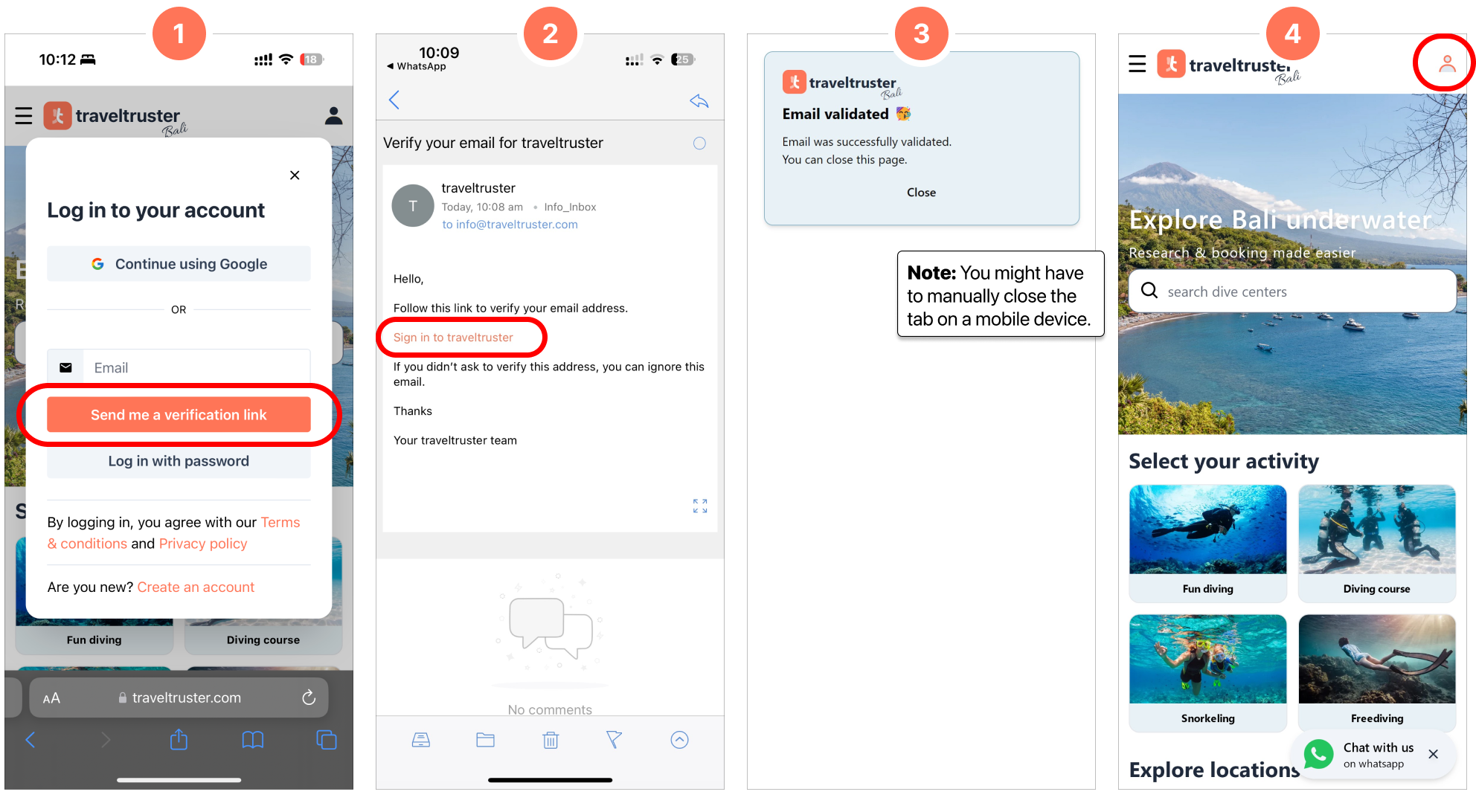
1. Email Verification Link
Section titled “1. Email Verification Link”Experience a secure passwordless login that sends you a unique login URL. You can open that URL on the device you are logging in from or on any device where you can access your email.
- Send the verification link
- Follow the url to verify your email
- You are logged in and this newly opened tab can be closed
- The icon color indicates you’re logged in
2. Google Login
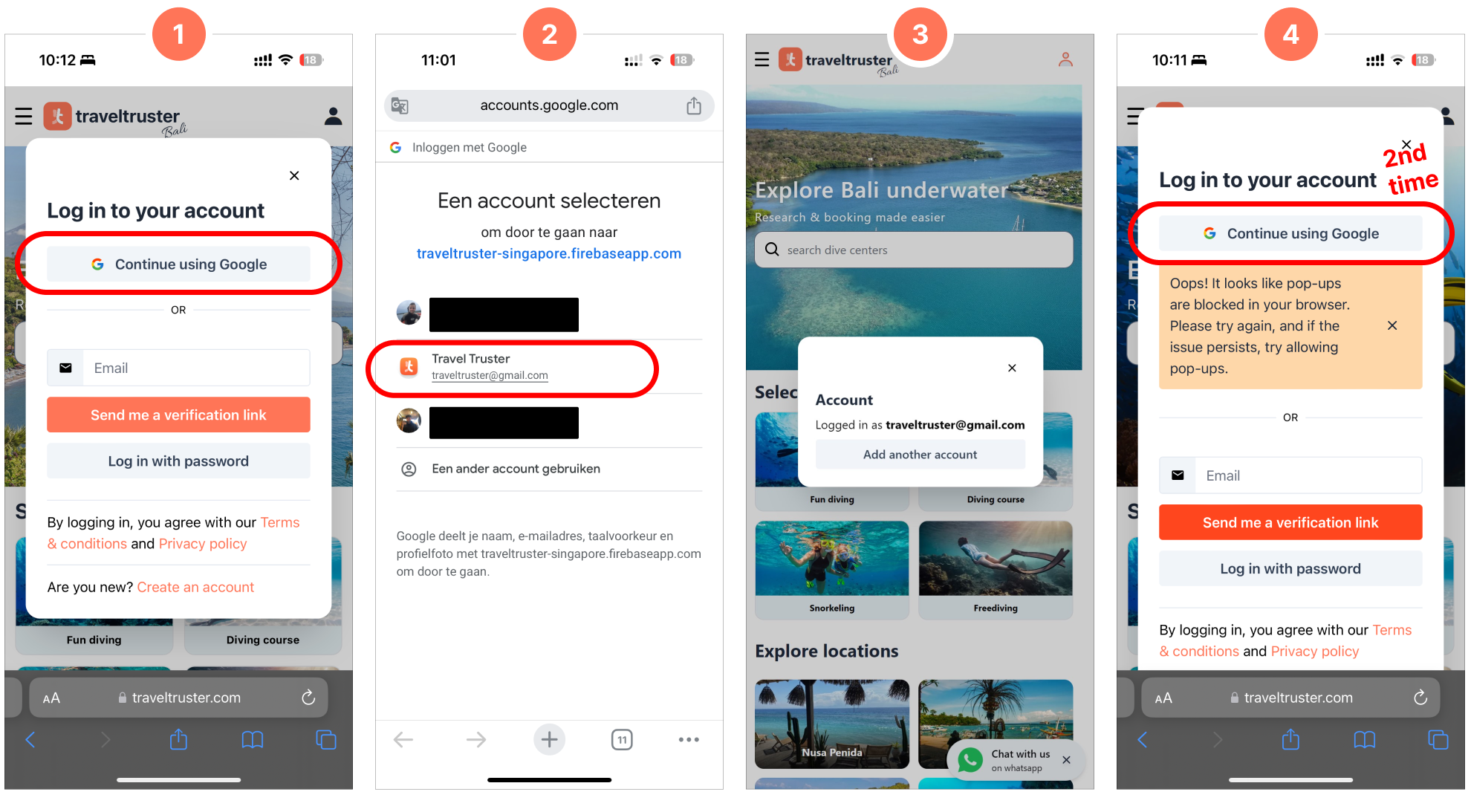
Section titled “2. Google Login”If you already have a Google account, you can log in without creating a separate password.
- Sign up through your google account.
- Select the desired Google account.
- You are now logged into your account.
- Pls press the button a 2nd time if your browser blocks pop-ups.
3. Password
Section titled “3. Password”You can establish a password for the conventional login method, ensuring seamless access across multiple devices. Please ensure the use of a robust password to enhance the security of your account.